Inhaltsverzeichnis
Freifunk München Meet: the guide
🇩🇪 Deutsch · 🇮🇹 Italiano · 🇫🇷 Français · 🇪🇸 Español · 🇬🇷 Ελληνικά
This page explains step by step how to use https://meet.ffmuc.net, our free video conferencing service. You don't need an account, you don't need to sign up and you don't need any special knowledge. An up-to-date browser is all it takes.
The service is based on the open source software Jitsi Meet and is run by volunteers from Freifunk München.
New here? Start with the section Get started in three steps. You can look up everything else whenever you need it.
Meet is free to use, but it isn't free to run. As an association, we pay for servers and traffic from donations. If Meet helps you, we'd be glad of your support: via PayPal or by bank transfer.
Contact: hilfe@ffmuc.bayern · Contact page · Privacy · Imprint
What can Freifunk Meet do?
Privacy and freedom
- No sign-up, no account, no ads, no tracking
- All servers are located in Germany and are looked after by us
- Encrypted connections, plus optional end-to-end encryption
- No recordings on our servers, no analysis of video or audio
- GDPR compliant. You don't need a data processing agreement, because we don't process any personal data
Features
- Share video, audio and your screen, in the browser, on your computer and on your phone
- Chat, polls, reactions, raise your hand
- Shared whiteboard and shared document
- Virtual backgrounds and background blur
- Live captions, lobby, password, breakout rooms
- Reserved rooms with fixed links for hosts, speakers and viewers
- Large events with many viewers
- Phone dial-in
Get started in three steps
1. Think of a room name
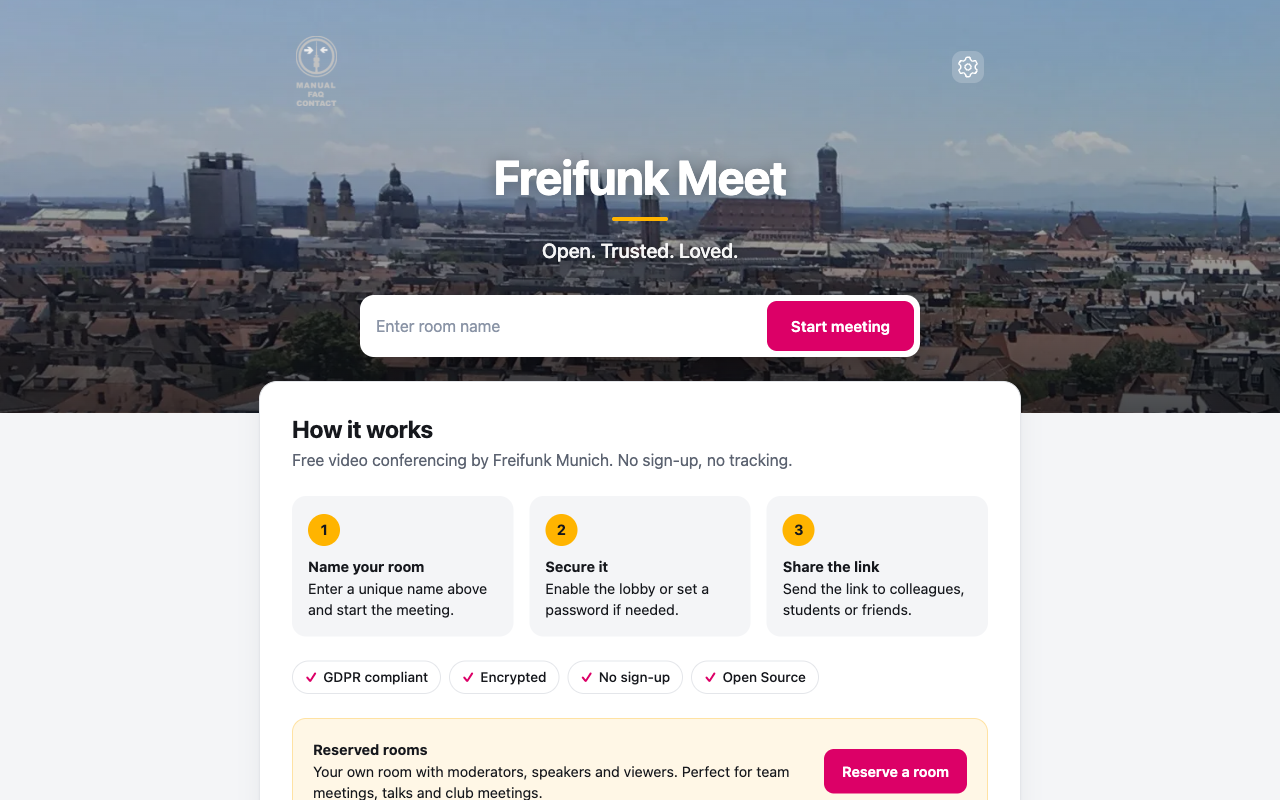
Open https://meet.ffmuc.net and type a room name into the field. Then click Start meeting.
2. Enter your name and join
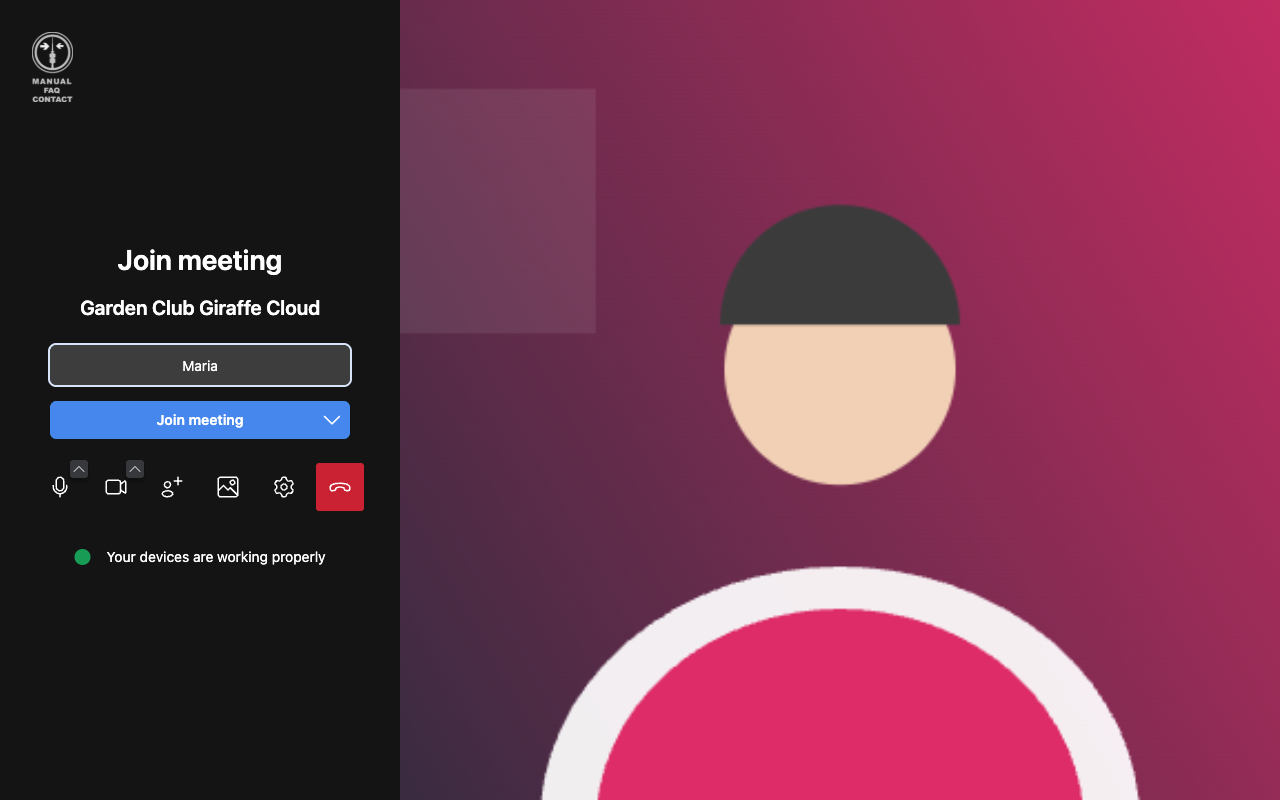
Enter your name so the others know who you are. Check that you can see yourself in the picture. Then click Join meeting.
3. Share the link
Send the address from your browser's address bar, for example https://meet.ffmuc.net/GardenClub-GiraffeCloud, to everyone who should join. Done!
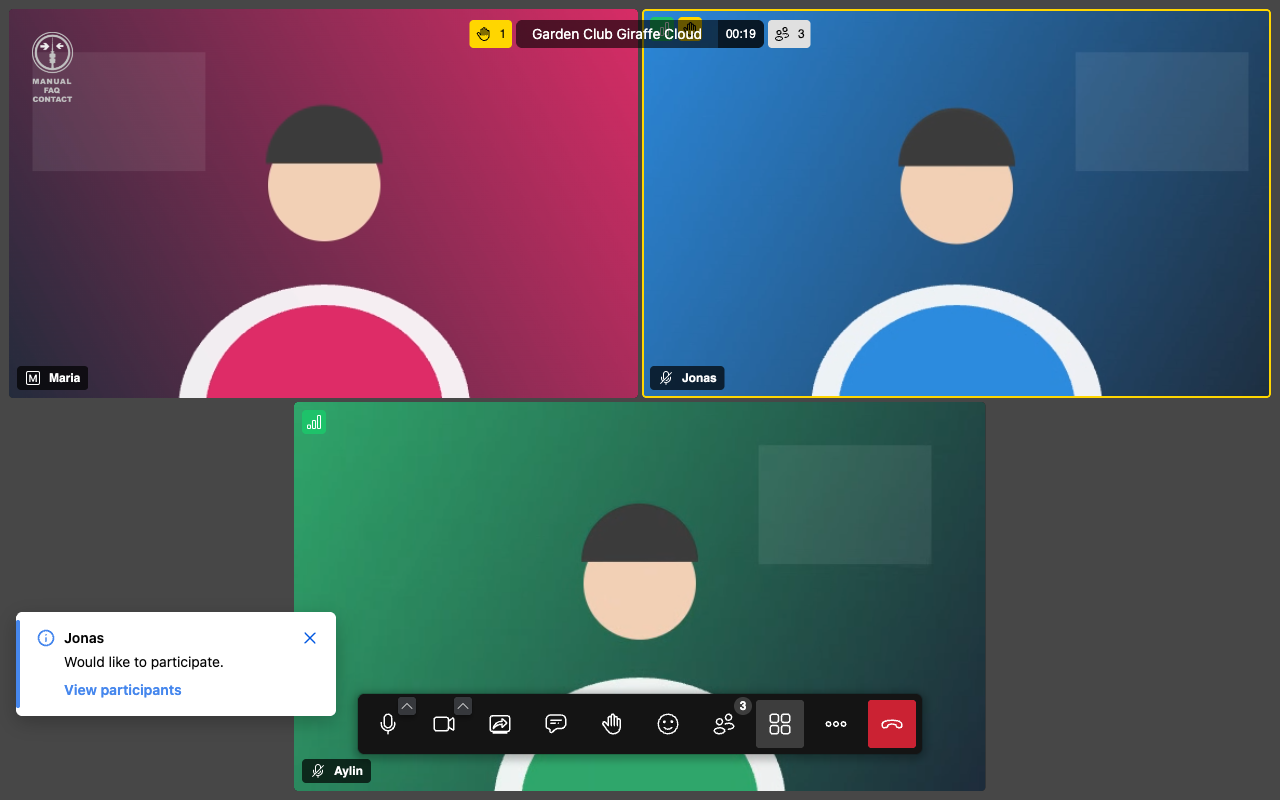
Good room names combine something related to your group with one or two random words, for example Physics10c-CatBox or GardenClub-GiraffeCloud. That way nobody ends up in your room by accident. Each room name exists only once, and a normal room disappears as soon as the last person leaves. If you need a fixed room that can't be guessed, use a reserved room.
The first person to enter a room is the moderator (you can tell by the small „M“ next to the name). Moderators can, for example, mute others, enable a lobby or set a password. You can give moderator rights to others in the participants list.
The toolbar explained
You'll find the toolbar at the bottom in the middle. Move your mouse over an icon to see a short explanation.

| No. | Button | What it does |
|---|---|---|
| 1 | Microphone | Turns your microphone on or off. Use the small arrow to pick a different microphone or speaker. Crossed out means: muted. |
| 2 | Camera | Turns your camera on or off. Use the arrow to pick a different camera or a background. |
| 3 | Share screen | Shows everyone your screen, a single window or a browser tab. Great for presentations. |
| 4 | Chat | Opens the text chat. Messages go to everyone or privately to one person. |
| 5 | Raise hand | Shows that you'd like to say something. The order of raised hands is shown in the participants list. |
| 6 | Reactions | Applause, laughter, thumbs up and more, without interrupting the conversation. |
| 7 | Participants | List of everyone in the room. Moderators can mute people, give rights and create breakout rooms here. |
| 8 | Tile view | Switches between „everyone the same size“ and „whoever is speaking is big“. |
| 9 | More | More features, see below. |
| 10 | Leave | Leaves the meeting. |
The "More" menu
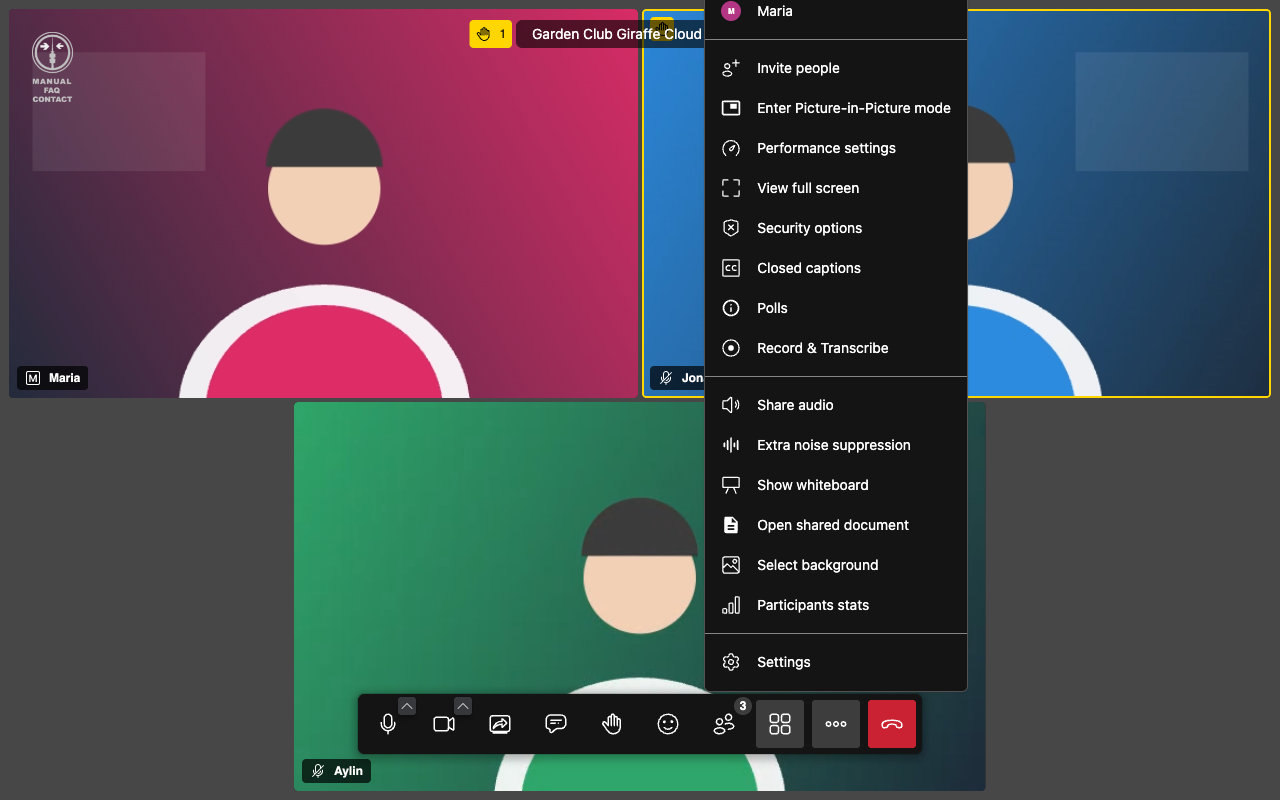
Behind the three dots you'll find, among other things:
- Invite people: copy the link, send it by email, show the phone dial-in
- Enter Picture-in-Picture mode: the meeting in a small window on top of other programs
- Performance settings: lower the video quality if your network or computer is slow
- Security options: lobby, password, end-to-end encryption
- Closed captions, Polls, Record & Transcribe
- Share audio, Extra noise suppression
- Show whiteboard and Open shared document
- Select background, Participants stats, Settings
Inviting people
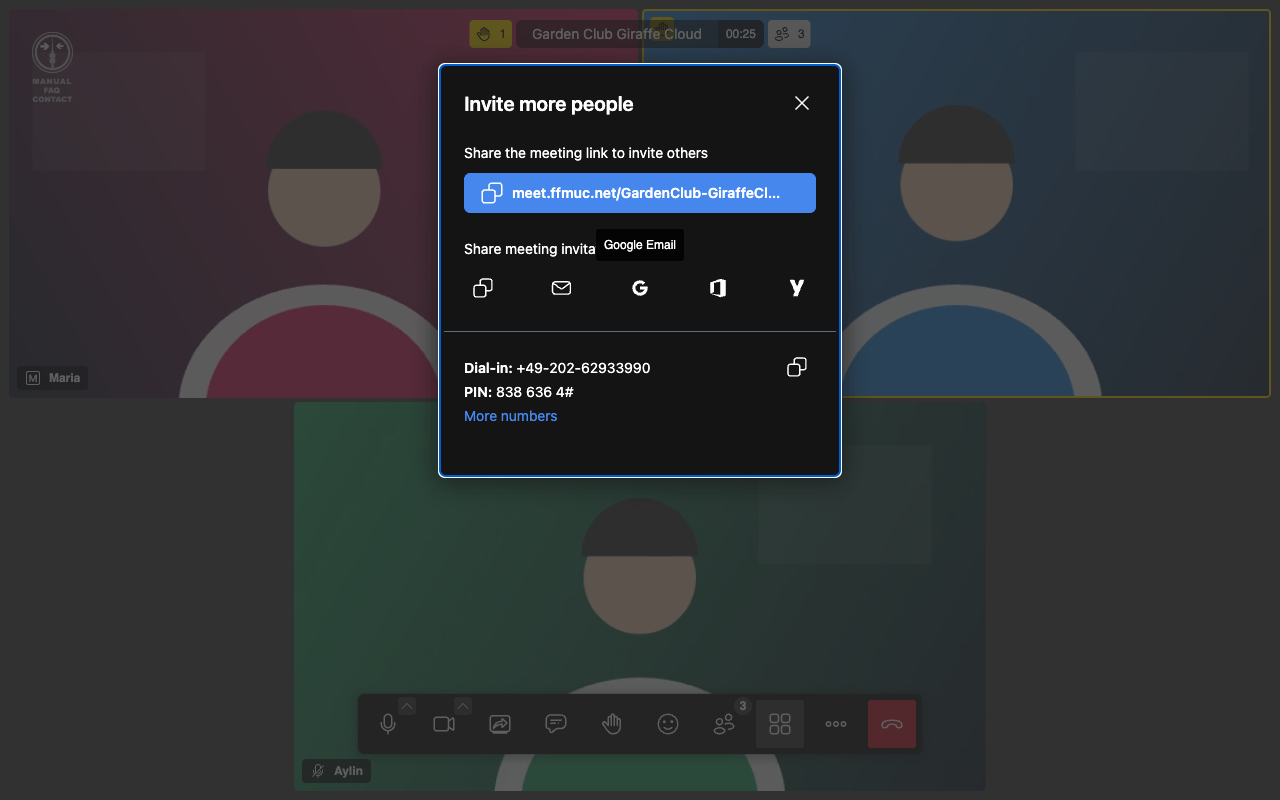
Use More → Invite people or the button in the participants list to open the invite dialog:
- Clicking the blue link copies the room address.
- Below it, you can send a ready-made invitation by email.
- Phone dial-in: People without internet can call +49 202 62933990 and enter the PIN shown, followed by #.
If you join with the mobile app, just open the link. If the app asks for a server, enter https://meet.ffmuc.net/.
Reserve a room
Anyone who knows the name can enter a normal room. For club meetings, talks, lessons, livestreams or regular meetups there are reserved rooms: https://meet.ffmuc.net/reserve
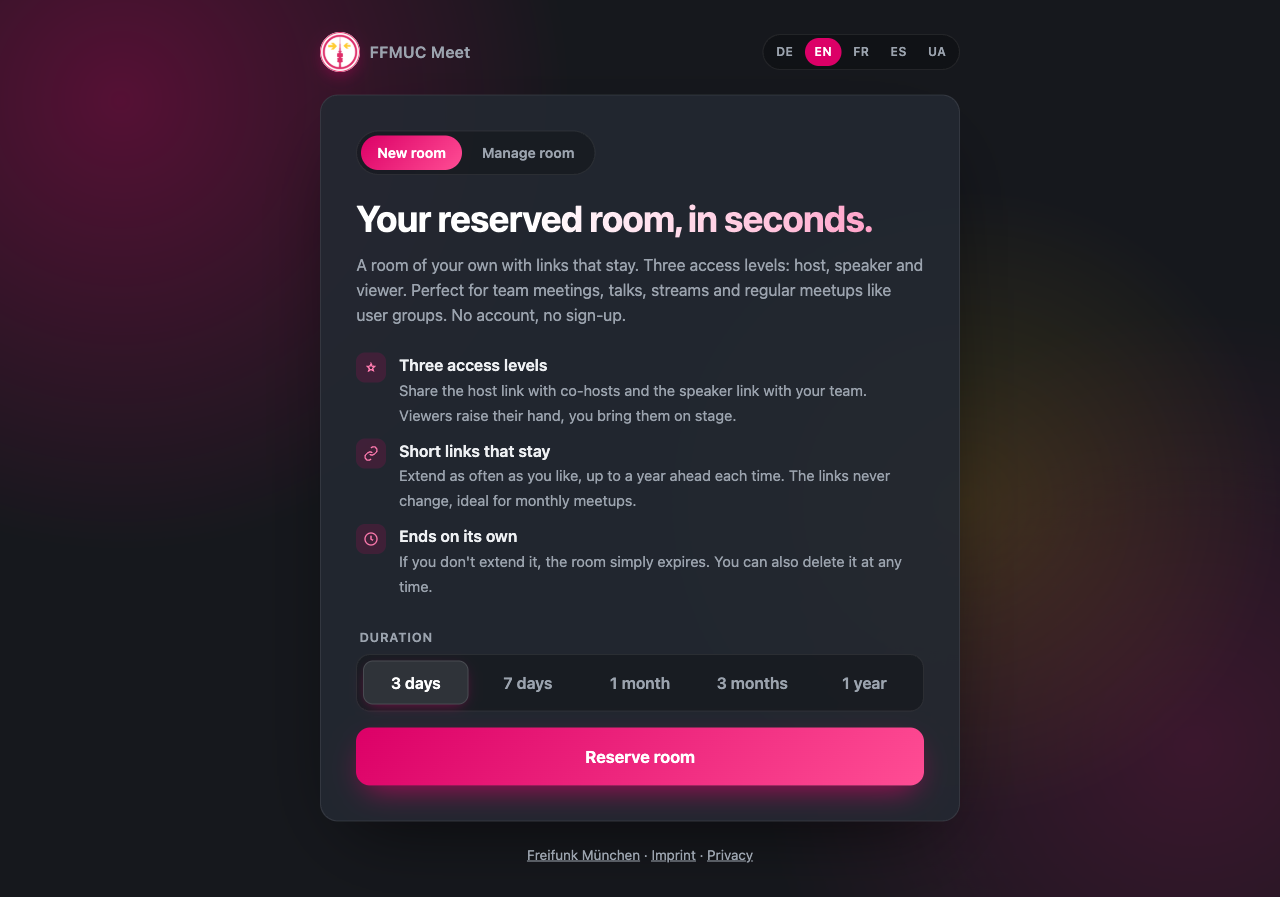
Here's how:
- Pick the duration: 3 days, 7 days, 1 month, 3 months or 1 year
- Click Reserve room. After a short spam check you get four links.
You don't need an account. The room name is random, so nobody can guess it. We only store the room name, the expiry date and checksums of the links, no names, email or IP addresses.
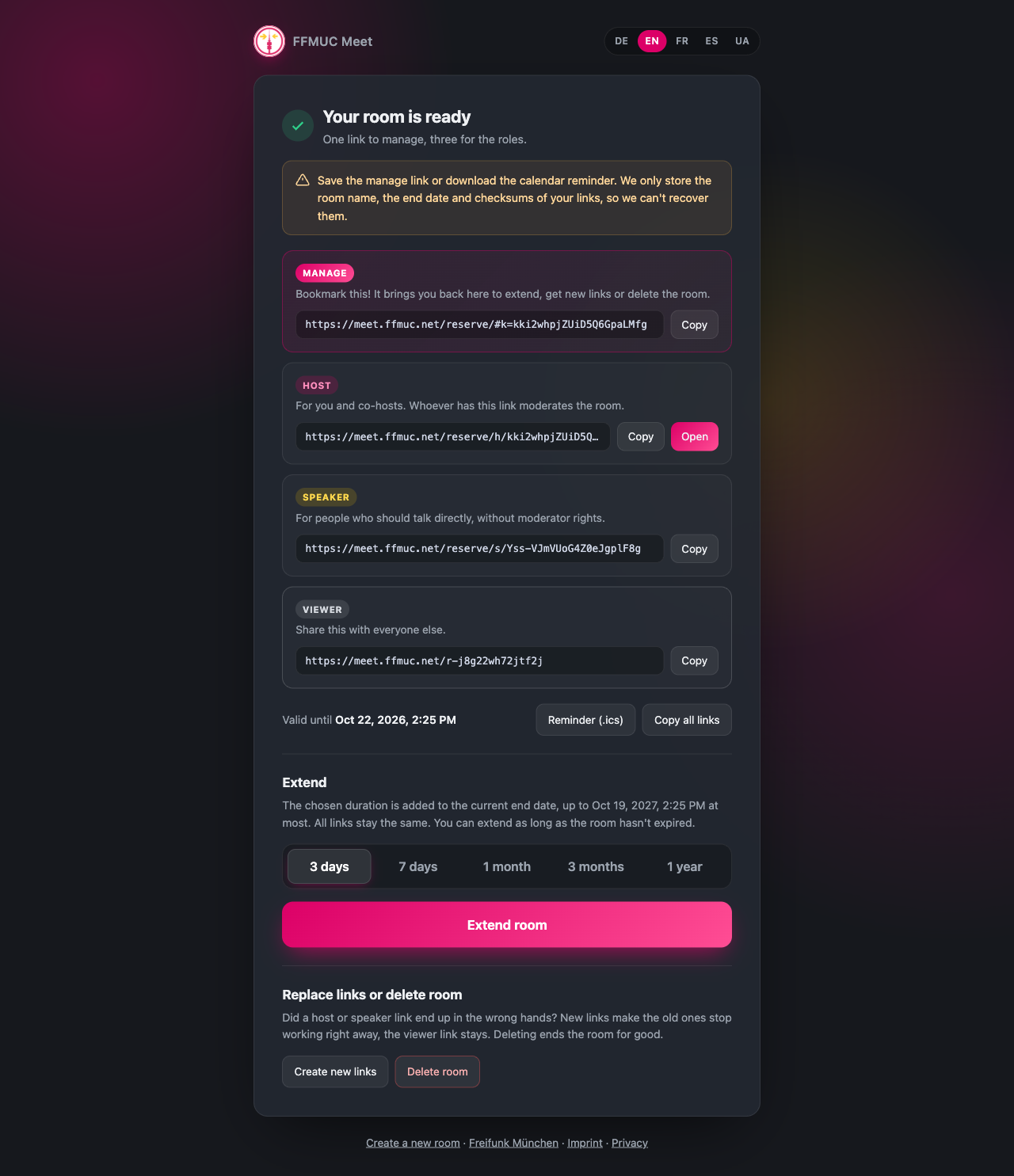
| Link | Who is it for? |
|---|---|
| Manage | Only for you. Bookmark it! It shows all links again. This is where you extend the room, create new links or delete the room. |
| Host | For you and your co-hosts. Whoever opens this link moderates the room. |
| Speaker | For everyone who should talk, but doesn't need moderator rights. |
| Viewer | For everyone else. Viewers watch and listen and can raise their hand. The host can then bring them on stage. |
Save the manage link! We can't recover it. The easiest way is to download a calendar entry with Reminder (.ics): it reminds you one week before the room expires and contains the manage link. So don't share it.
Extending: Open the manage link, pick a duration and click Extend room. The new duration is added to the current expiry, up to one year ahead at most. You can extend as often as you like. All links stay the same, so you can leave them in invitations, calendars or on your website. Ideal for monthly meetups. Afterwards, download the reminder again; it replaces the old calendar entry.
New links: If a host or speaker link has fallen into the wrong hands, open the manage link and click Create new links. The old host, speaker and manage links stop working immediately. Anyone already in the room with an old link stays until they leave; if needed, remove them via the participants list. The viewer link stays the same.
Deleting: Delete room ends the room for good. Without extending, it expires on its own anyway.
Old links: Links from the first version (very long room names) keep working. If you open an old manage link, the room is taken over and can then also be extended by up to one year.
Do you only have the host link left? Open https://meet.ffmuc.net/reserve, choose Manage room and paste it there.
Large events and viewers
When a room gets very full, additional people automatically join as viewers. They see and hear everything, but put hardly any load on the meeting. This makes events with several hundred people possible. Viewers can raise their hand; moderators can then invite them to speak.
To keep things running smoothly, Meet shows at most 25 videos at the same time, namely those of the most recently active speakers.
Moderating and securing your meeting
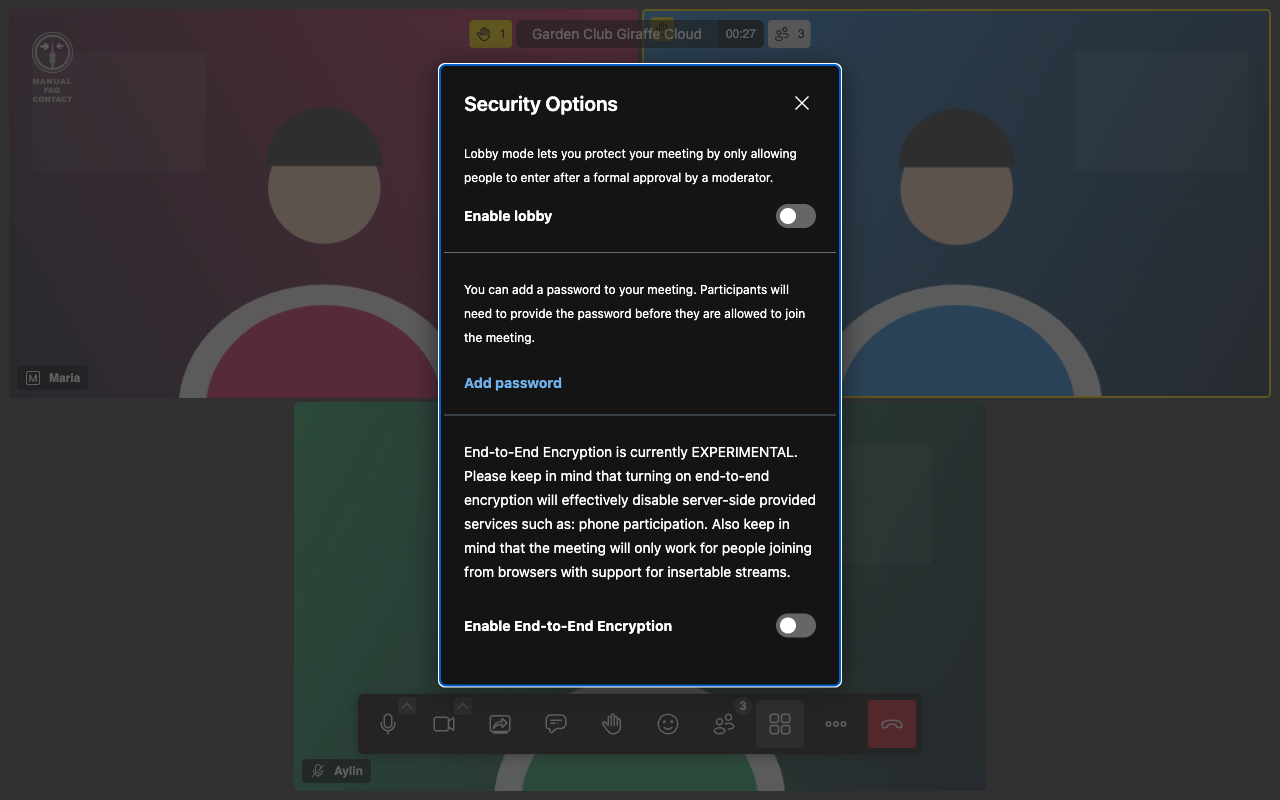
Under More → Security options you'll find:
- Lobby: New people wait at the door until a moderator lets them in.
- Password: Only people who know the password can get in. It is valid as long as the room exists.
- End-to-end encryption (E2EE): Video and audio are encrypted so that not even our servers can read them. Phone dial-in and captions then won't work, and everyone needs an up-to-date browser.
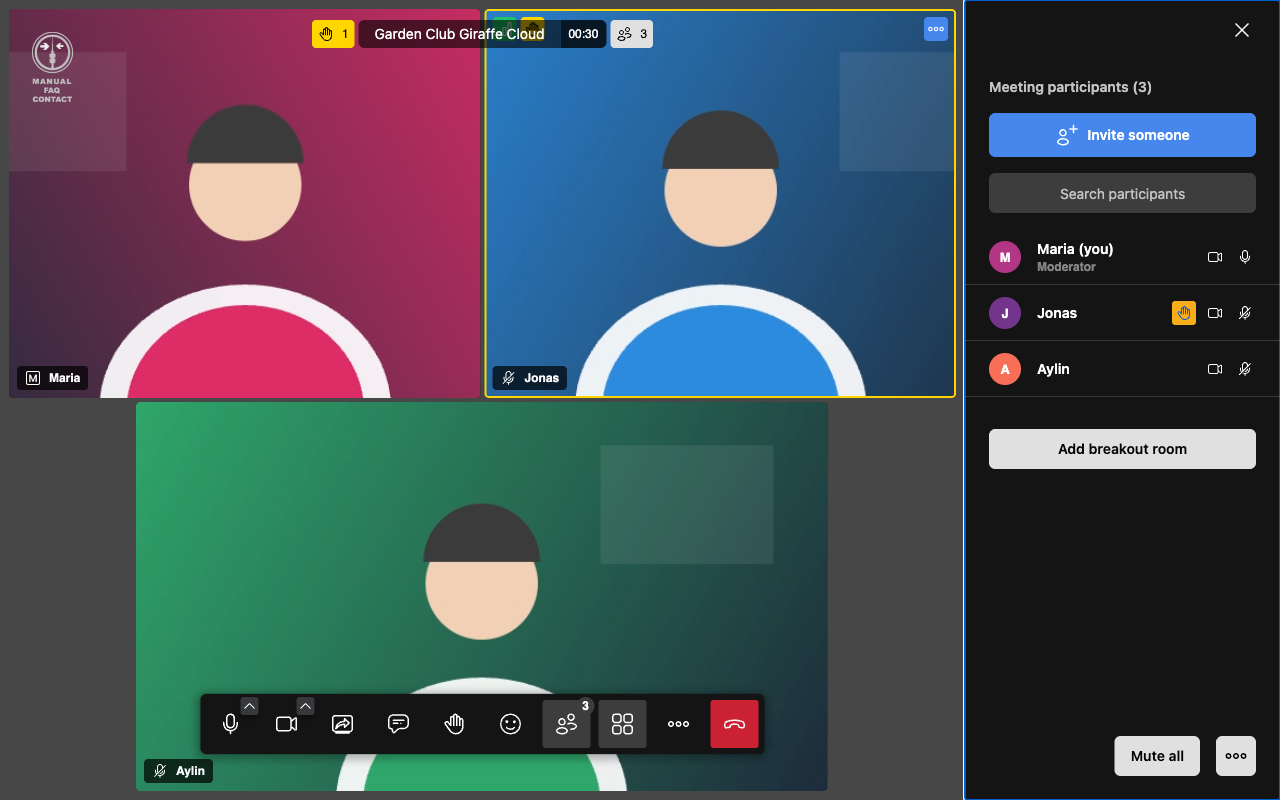
In the participants list (button 7), moderators can:
- mute everyone or individual people, or turn off their camera
- give moderator rights
- remove people from the room
- create breakout rooms: small group rooms that everyone can switch between
- see who raised their hand, in the right order
Working together
Chat
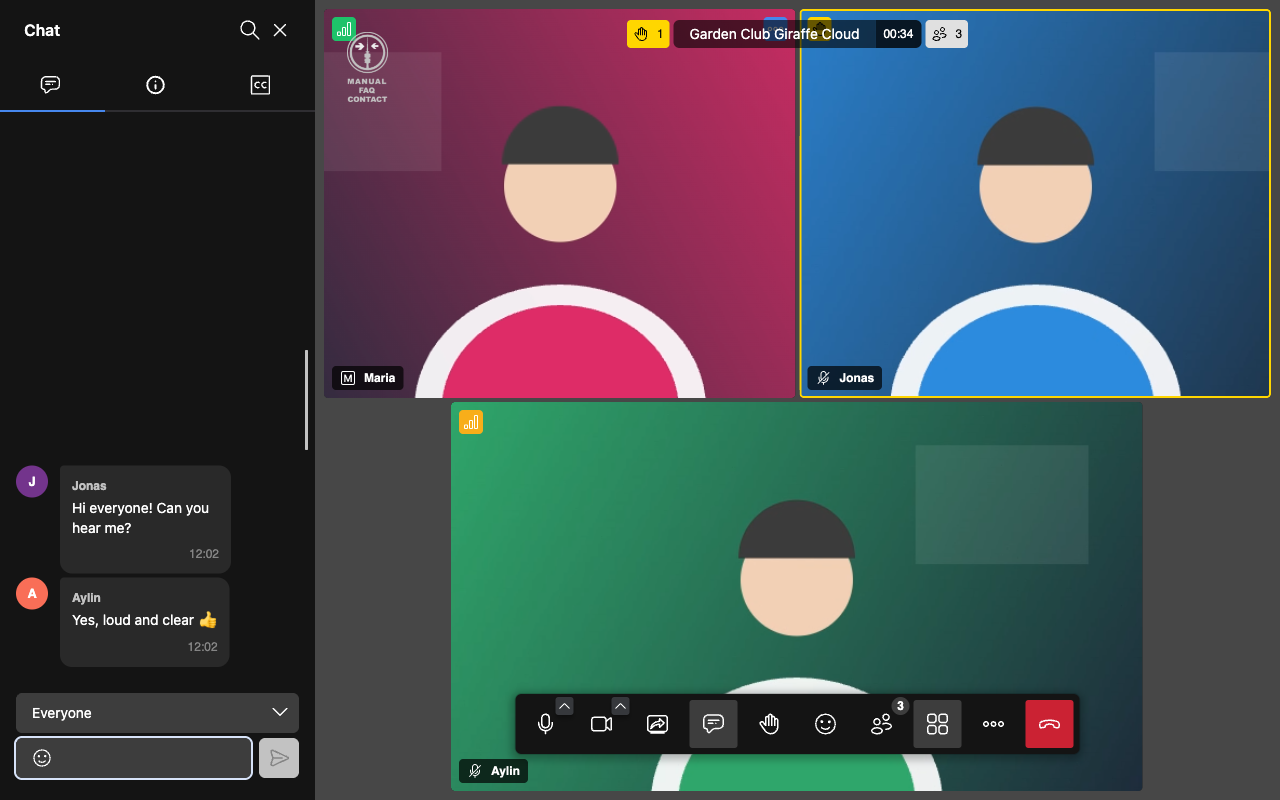
Send messages to everyone or, using the drop-down, privately to one person. The chat is deleted as soon as the room is empty.
Polls
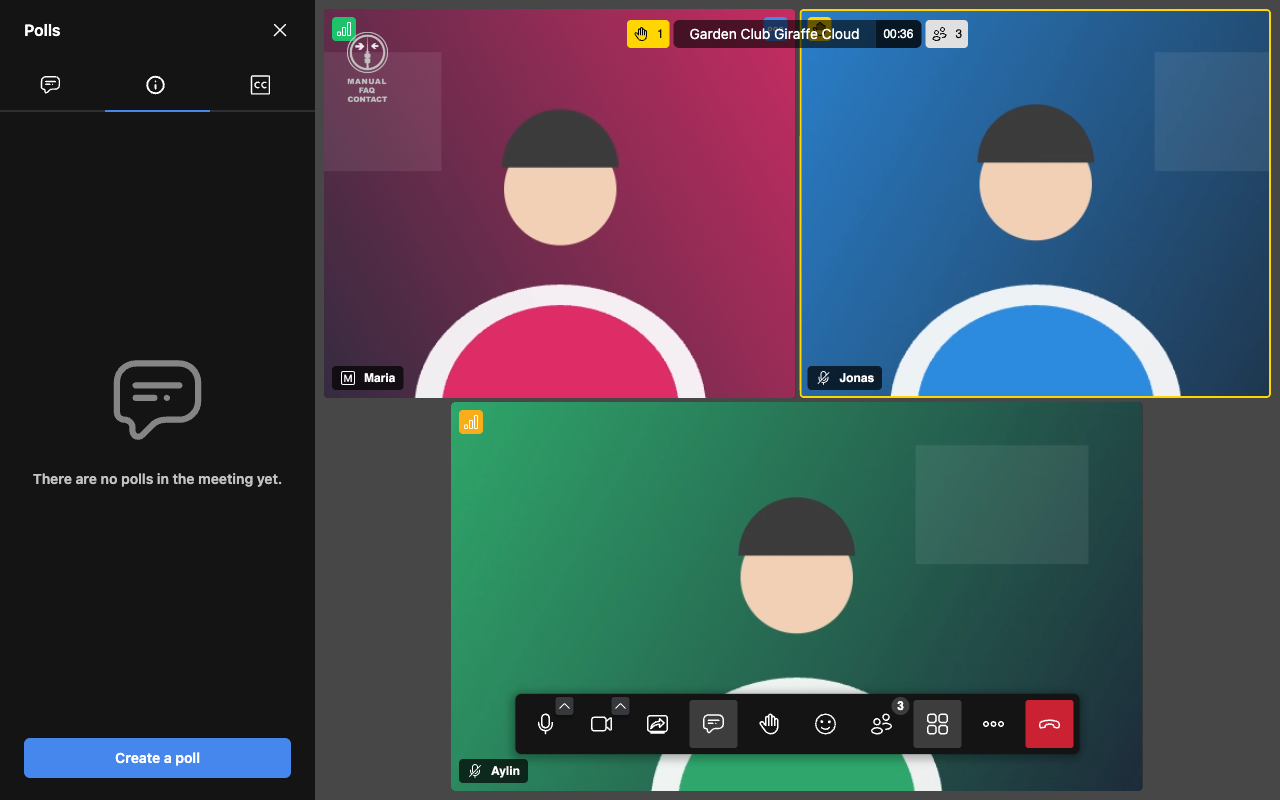
Under More → Polls you can ask a question with several answers. Everyone votes with one click, and the result is visible right away.
Whiteboard
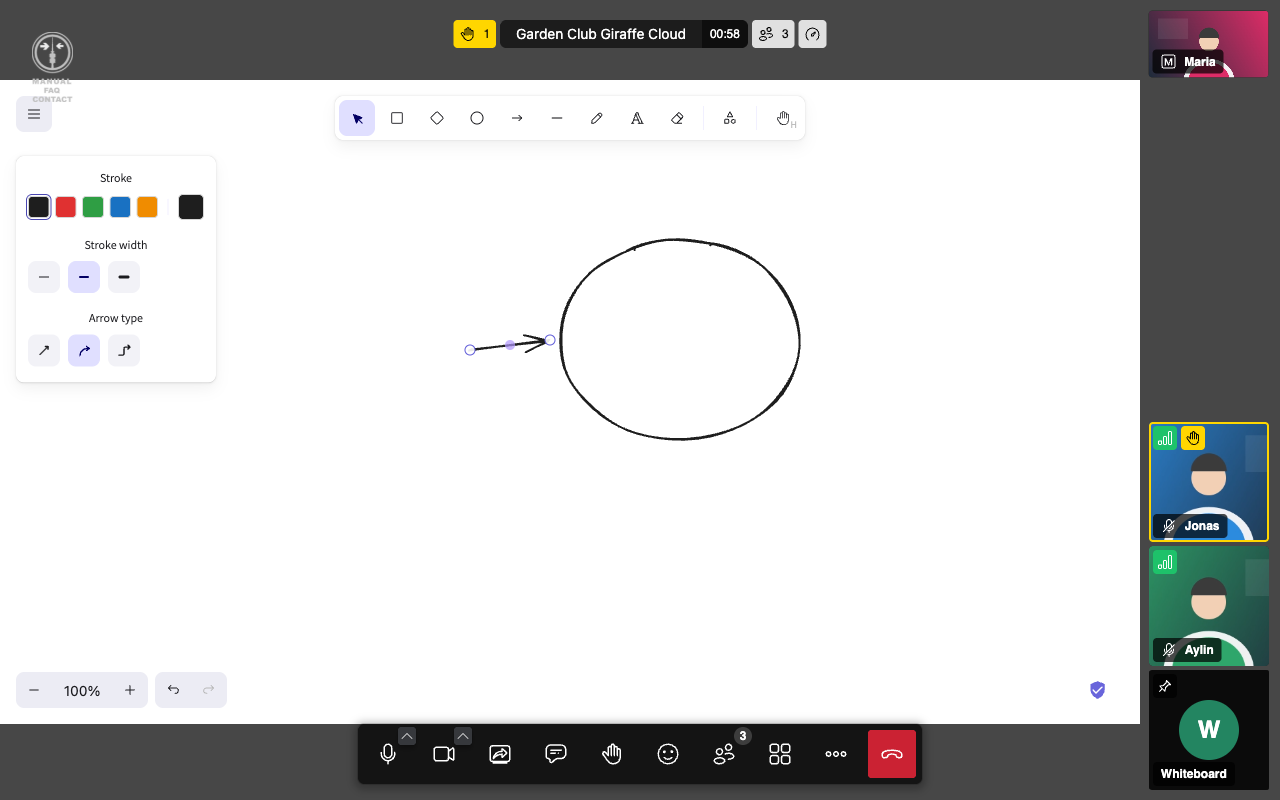
Under More → Show whiteboard you can draw sketches, arrows and notes together.
Shared document and more
- Shared document: a shared notepad that everyone can write in at the same time, perfect for taking minutes. Open it with More → Open shared document.
- Reactions and Raise hand (buttons 5 and 6)
- Share screen (button 3), with sound if you like via More → Share audio
Video and audio
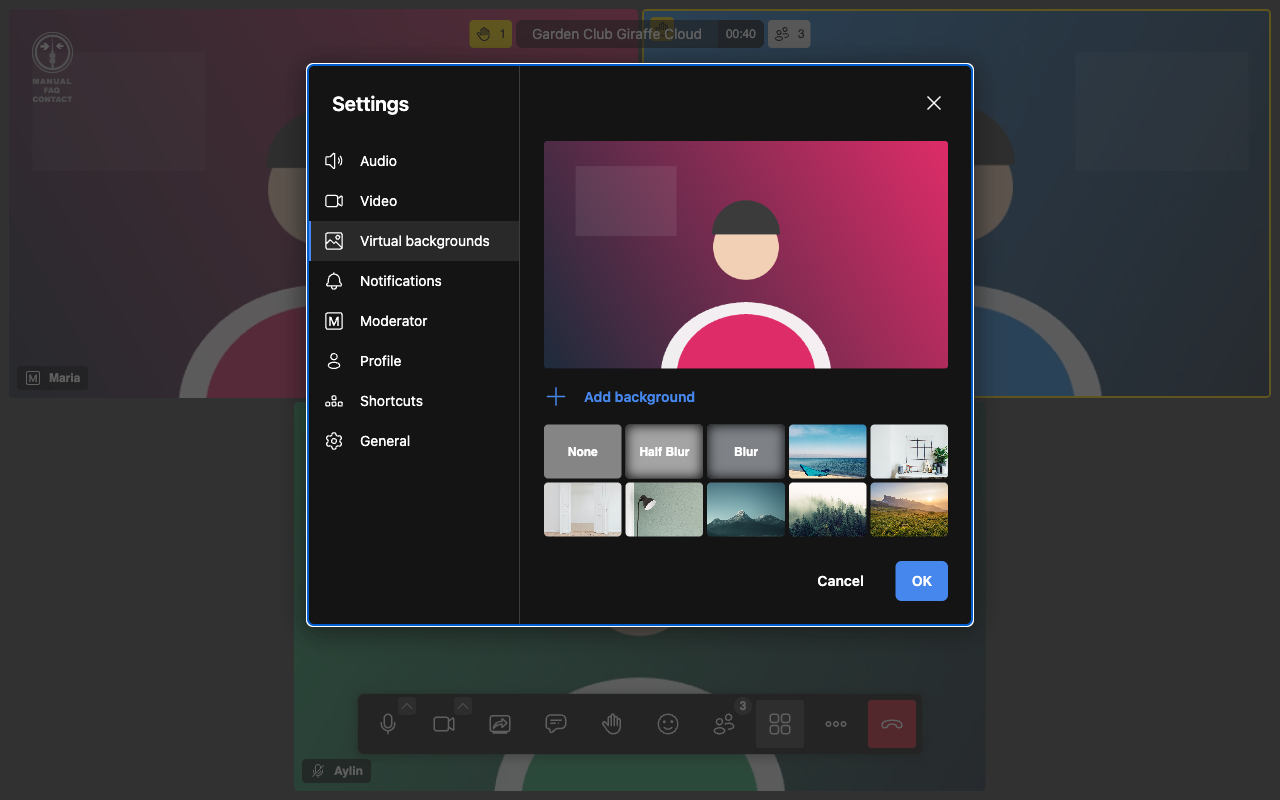
Background: Under More → Select background you can blur your background or replace it with an image. With Add background you can upload your own image. The image stays on your device. On older computers this can cost some performance.
Extra noise suppression (in the More menu) filters out keyboard clatter and background noise.
Settings (at the bottom of the More menu): choose your microphone, speaker and camera, change your name and set notification sounds.
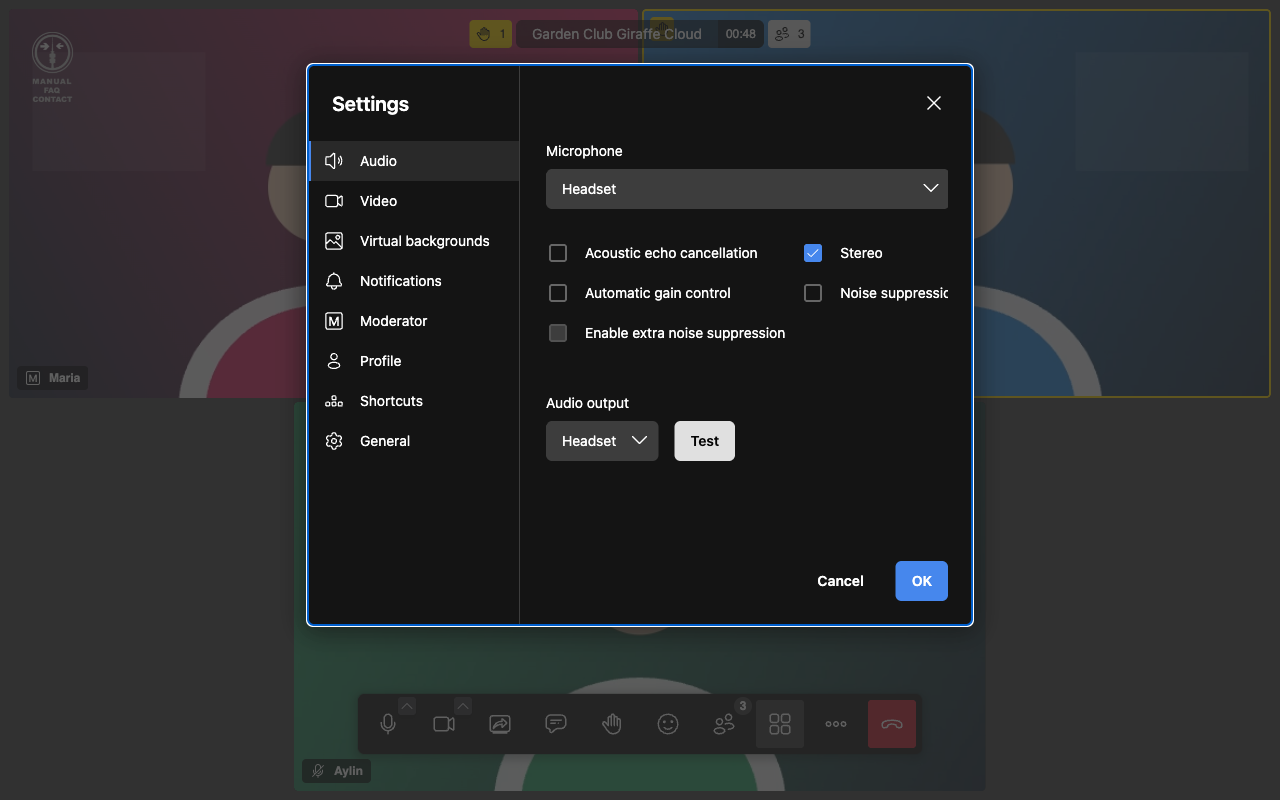
Tips for good audio
- Use headphones or a headset. That almost always prevents echo.
- Mute your microphone while you're not speaking.
- In larger groups: one person moderates and calls on people who raised their hand, one after another.
- Is it choppy? Lower the video quality under More → Performance settings or turn off your own camera.
Recording and captions
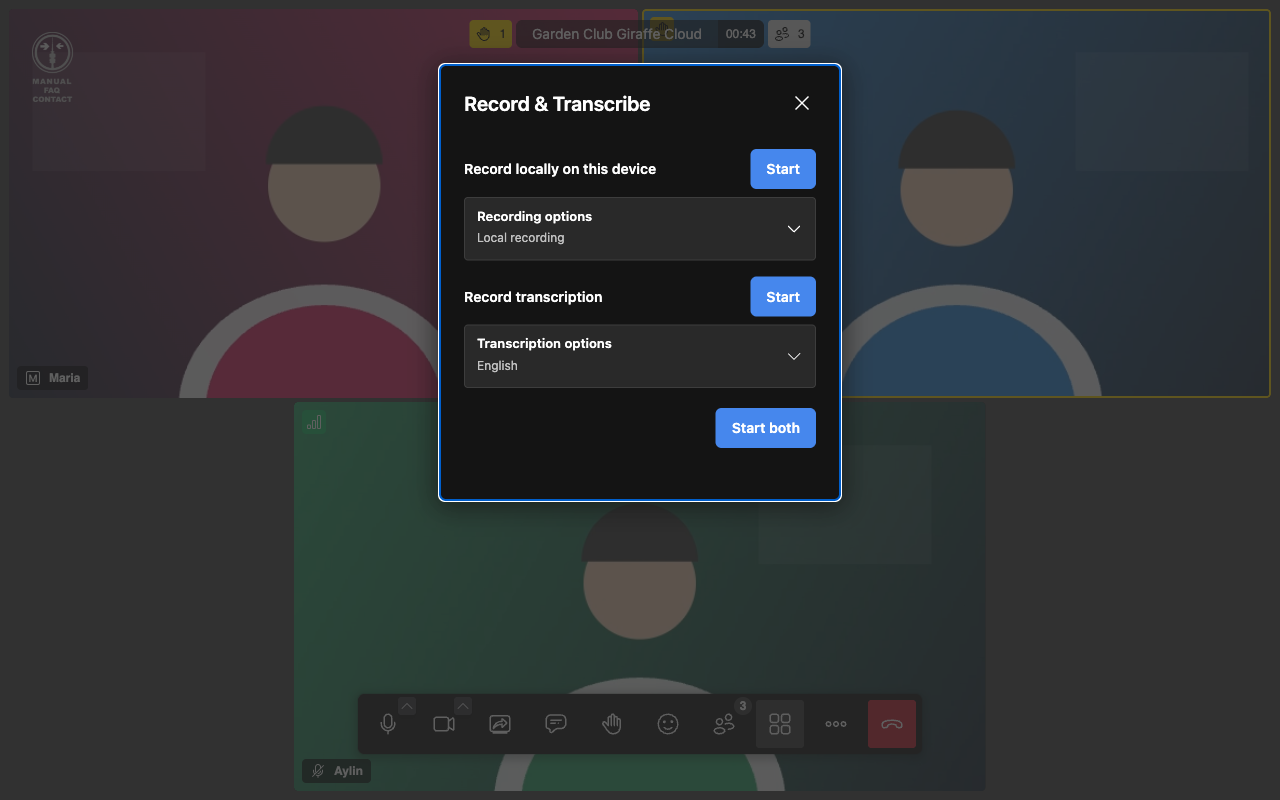
Recording: Under More → Record & Transcribe you can record the meeting on your own device (Record locally on this device). The file is only saved on your device, never on our servers. All participants are informed automatically while a recording is running.
Before every recording, ask everyone involved for their consent. The person recording is responsible for this.
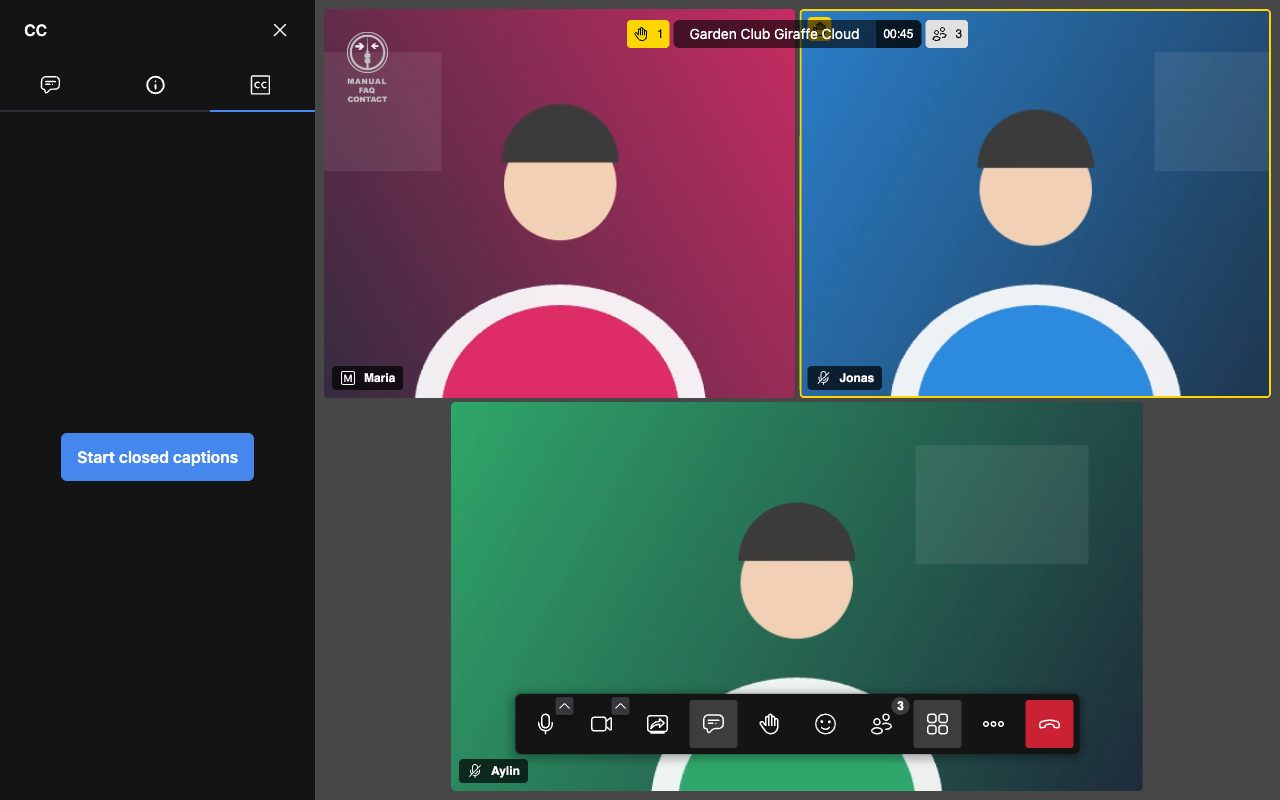
Captions: Under More → Closed captions you can turn on live captions with Start closed captions. Speech recognition runs on our own servers in Germany, without any external cloud services. Captions are handy for people with hearing impairments or when the audio is poor. Recognition isn't perfect, especially with dialects or several people speaking at once.
Apps for computer and phone
Windows, macOS, Linux
Meet works best in Chrome, Chromium, Edge or an up-to-date Firefox. Alternatively, there is our preconfigured desktop app:
Note: Windows or macOS may warn you about an „unknown developer“ or „unidentified developer“. In that case choose „Run anyway“ or „Open Anyway“ (guide for macOS).
Android and iPhone/iPad
Install the official Jitsi Meet app:
Just open the invitation link. Alternatively, enter https://meet.ffmuc.net/ in the app under Settings → Server URL.
If you use the same room name but still don't end up in the same room, the app usually still has the default server meet.jit.si set.
Terms of use
Allowed:
- Private meetings with friends and family
- Groups, clubs, civil protection and medical care
- Research and teaching
- Social institutions (daycare centers, retirement homes, parishes etc.)
- Religious services
- Public bodies with sovereign duties
- Teams in small companies and trades
Not allowed:
- Streaming copyrighted material (movies, music etc.) into the room. Watching together, where everyone plays the movie on their own device, is fine.
- Commercial use for online shops and online courses
- Use by groups, parties and associations that are banned under German law
- Content and purposes that are illegal under German law
We can't guarantee that the service is always available. By using it, you accept the Freifunk München terms of use.
Support us
Meet is free of charge, but servers and traffic cost money. The costs are covered by members of Freifunk München and the association Freie Netze München e.V. We're happy about every donation!
Bank transfer:
Freie Netze München e.V.
IBAN: DE73 7025 0150 0029 4939 13
Kreissparkasse München Starnberg Ebersberg
Reference: Meet
PayPal:
Unfortunately we are not recognized as a charity and can't issue donation receipts.
Frequently asked questions
Do I need to install anything?
No. On a computer, an up-to-date browser is enough. On your phone you need the free Jitsi Meet app.
My microphone or camera doesn't work.
- Does the browser have permission? Click the lock on the left of the address bar and allow camera and microphone.
- Is the right device selected? Click the small arrow next to the microphone or camera button.
- Is another program (e.g. Teams, Zoom) using the camera right now? Then close it.
- If nothing helps: reload the page or try a different browser.
There is an echo or a whistling sound.
Usually someone isn't wearing headphones and their microphone picks up their speaker. Put on headphones or mute your microphone while you're not speaking.
The video is choppy or my computer gets hot.
Choose a lower quality under More → Performance settings, turn off virtual backgrounds and close other programs. Sometimes it also helps to disable your ad blocker for meet.ffmuc.net. We don't show ads and don't use trackers.
I can't see all the videos.
To avoid overloading computers and connections, we show at most 25 videos at the same time, namely those of the most recently active people.
We are in different rooms even though the name is the same.
Most likely someone is using the mobile app with the default server meet.jit.si. Open the complete link https://meet.ffmuc.net/RoomName or change the server in the app to https://meet.ffmuc.net/. Also check upper and lower case and typos in the room name.
Is the meeting encrypted?
Yes. The connection between you and our servers is always encrypted. Normally the data is briefly decrypted on the server so it can be distributed to everyone. If you turn on end-to-end encryption in the security options, not even we can read along.
Can you look into our room?
Not without visibly joining the room as an additional person. With a password or lobby, we can't get in either.
What do you store?
We store no video, audio or screen content and no chats. For troubleshooting we keep web server logs for 7 days (time, IP address, page requested, browser) as well as room names with an internal user ID, but not your display name. Statistics (e.g. number of meetings) are processed anonymously. Of reserved rooms we only store the room name, the expiry date and checksums of the links. We forget expired rooms after 30 days.
Is this secure enough for my purpose?
For normal conversations, teaching and club work: yes. For content that is subject to confidentiality requirements: no. We don't have any special certifications, but we work in compliance with the GDPR.
Who is Freifunk and who pays for all this?
Freifunk is a non-commercial initiative for free networks. Learn more at What is Freifunk and in the Freifunk München FAQ. The Meet service is run by volunteers in their free time. The costs are covered by members and the association Freie Netze München e.V., supported by donations.
What happens in case of abuse?
We cooperate with the courts and the police on legally justified requests. In case of abuse, we reserve the right to restrict the service.
Can I help with server capacity?
Yes! We're happy about donated root servers without NAT (at least 8 CPU cores, 32 GB RAM, fast connection). Get in touch at hilfe@ffmuc.bayern.
Contact
- Freifunk München with Freie Netze München e.V.
- Email: hilfe@ffmuc.bayern